Showing posts with label Windows Vista. Show all posts

Saturday, February 11, 2012

6 Tools for Windows Maintenance

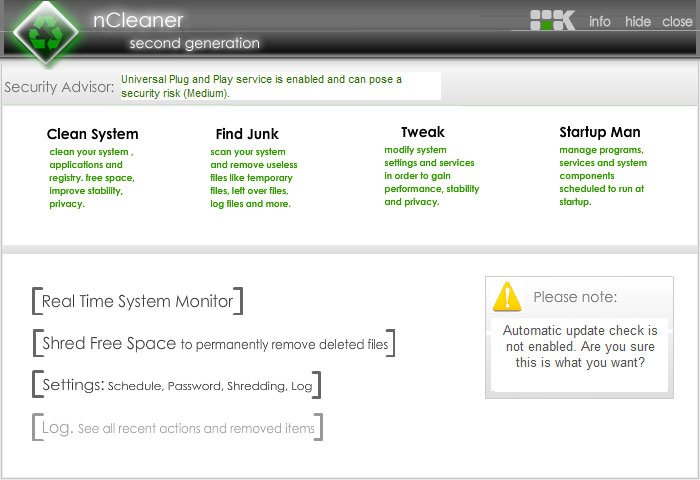
In windows most of us are downloading, deleting and move file from here to there, and after this your windows has so many dump files and the performance is not so good as before. And most of the users don,t know hot to Maintain Windows. So am here posting 6 best tools for Windows Maintenance.

1. nCleaner


Saturday, December 10, 2011

How To Disable USB Ports To Prevent Malware Infection

Many people use USB flash drives for transfer files, they often plug their Flash drives for many computers. Therefore, most of the usb drives are contained malwares, viruses etc. On the other hand, these USB drives are the spreaders of that kind of malicious applications. If you can disable or lock USB port temporarily, they can not be able to plug their Flash drives to your Computer or Laptop. There are several ways for disabling USB ports such as using Regstry Editor, Disabling autorun and using software. Today i am going to discuss about how to disable and enable the USB ports.
First, you need to go to Registry Editor (Start > Run > type " regedit " without having quotes).
* in the Registry Editor, Go to HKEY_LOCAL_MACHINE >SYSTEM>CurrentControlSet >services>USBSTOR

Friday, December 9, 2011

How to disable the right click functionality on the desktop


Today tip is very useful particularly for home users who want to protect their system default settings against unwanted changes that other users can make. For example changes in system desktop appearance, themes, and screen saver as well as other display settings. Using registry editor, you can disable the right click functionality on desktop to access the "Display Properties" dialog box and this will also prevent users to access windows explorer. 
Follow the given steps to disable the right click functionality on desktop:

To use this feature, you will need to be logged into your computer with administrative rights.

Click Start button and type regedit in Run option then press Enter for next.

Thursday, December 8, 2011

How to disable or enable Dr. Watson for Windows

To disable Dr. Watson

  1. Click Start, click Run, type regedit.exe in the Open box, and then click OK.
  2. Locate and then click the following registry key:  
    HKEY_LOCAL_MACHINE\Software\Microsoft\Windows NT\CurrentVersion\AeDebug
    NOTE: Steps three and four are optional, However, they are necessary if you want to restore the default use of Dr. Watson. 
  3. Click the AeDebug key, and then click Export Registry File on the Registry menu.
  4. Type a name and location for the saved registry file, and then click  Save.

Shut Down Windows XP in 7 Different Ways


There are so many different ways to turn off your Windows XP Computer, let's look at some of them:

1. The standard approach - click the Start Button with your mouse, then select the Turn Off menu and finally click the Turn Off icon on the Turn Off computer dialog. [ooph!]

creating a Login banner in windows

Login banners are used in the windows for displaying messages that user must agree to before using the system. You may want the users to abide by certain terms and conditions while using the official PC. These kings of messages may be displayed during the login of windows system.
In order to enable the login banner
GO to start--> Run --> type regedit --> Press enter
Go to following registry setting
HKEY_LOCAL_MACHINE\SOFTWARE\Microsoft\Windows NT\CurrentVersion\Winlogon
registory setting for login banner-LegalNoticeCaption
1) Select “LegalNoticeCaption” from the right side of the screen --> right click--> click on

Create A Shortcut To Lock Your Computer In Windows XP/7/Vista


Leaving your computer in hurry but you doesn’t want to log off? You can double-click a shortcut on your desktop to quickly lock the keyboard and display without using CTRL+ALT+DEL or a screensaver.


 In XP
Step 1: On the Desktop, Right Click and hover over New and Click Shortcut.
Create Desktop Shortcut

Step 2: Give the execution code in the ‘Type of the location of the item‘

How To Change The Default Program Files Location For Installing Software in Windows

Windows Vista ( and also Windows 7) , like its predecessors, uses the System Disk for installing any new applications, That is, if your Windows is installed on the C Drive, the default folder where all the applications you install would automatically show up as C:\Program Files , unless of course you change in manually while installing the application’s locations.
If you almost always prefer to NOT install on the System Disk, but instead on another partition, say, the D drive, then rather then changing the default location everytime, you can edit the registry as follows:

Open Regedit and navigate to the following key:

Saturday, November 26, 2011

Remove XP VISTA Window7 Server 2003 Server 2008 Password and Syskey

How many times you have to reinstall windows due to forget password of administrator or syskey? In lab scenario it's very common. Consider a situation where students form one batch was doing the practical on Server. They have set administrator password in all system and left the lab after the practical without telling you the password of Syskey and administrator. What will you do now? Format all systems No. we are telling you the way to reset the password and Syskey on window again. For demonstration purpose we are setting Syskey and administrator password on one computer.

To set Syskey password

Friday, November 25, 2011

Microsoft introduction to Vista

Microsoft Windows Vista

Windows Vista introduces a breakthrough user experience and is designed to help you feel confident in your ability to view, find, and organize information and to control your computing experience.
The visual sophistication of Windows Vista helps streamline your computing experience by refining common window elements so you can better focus on the content on the screen rather than on how to access it. The desktop experience is more informative, intuitive, and helpful. And new tools bring better clarity to the information on your computer, so you can see what your files contain without opening them, find applications and files instantly, navigate efficiently among open windows, and use wizards and dialog boxes more confidently.
Quick SearchQuick Search 

Ease of use

When you start using Windows Vista, you will recognize familiar elements such as the Start menu, which is now faster, more streamlined, and more helpful than in previous versions of Windows. The Start menu features integrated desktop search through a new feature called Quick Search which can help you find and launch almost anything on your PC. Just type in a word, a name, or a phrase, and Quick Search can find the right file for you. But more than that, the new start menu makes it very easy for you to navigate across all of the installed applications on your PC. Eliminating the slow performing, cascading "All Programs" view, the new start menu can help you get something started faster than ever.
ßUse Quick Search to find the information you need fast.


Desktop Search

With Windows Vista, you no longer have to remember where you store every file. Instead, to find a file, you need to only remember something about it, such as a word contained within a document, the artist of a song, or the date a picture was taken. Powerful, integrated desktop search capabilities help you find just about anything on your computer quickly, without having to search for it by browsing through folders. For example, in the new Start Menu, it is as simple as typing a word, a phrase, a property, or any part of a file name into the embedded Quick Search box to instantly find the file that you want.
ß A new yet familiar look to the Start menu in Windows Vista.

Sunday, November 20, 2011

Windows Keys: XP, Vista, 7 (Multiple Builds) Updated 16.Jan.2011

________________________________________________________
Windows XP
________________________________________________________
===== Microsoft Windows XP Professional =====
MMCCB-GVXVK-362Q6-GMB6C-J7HC3
VPR7K-GPY8G-CPRTH-DT3VK-R84M3
JHJBY-RFR88-8F8G4-TPG8M-4Q67Y
V2C47-MK7JD-3R89F-D2KXW-VPK3J
76DMY-V3TT4-3PDP7-GDM4Y-PWCG6
CFDYK-FFHH7-QW3HM-JGRQX-KM77T
WCBG6-48773-B4BYX-73KJP-KM3K3
VRDDV-8FF62-J6MFF-W628V-TR2CT
MVPFR-6D79Y-2VPP2-CP9TX-3T48Y
CGJ2M-CFTXY-W4RBJ-BWTGB-VH2CB
THMPV-77D6F-94376-8HGKG-VRDRQ

LinkWithin

Related Posts Plugin for WordPress, Blogger...