You probably already know, Microsoft stopped the support for Windows XP SP2 in July last year (2010). That means that no matter what security or vulnerability problem that gets discovered on the Windows operating systems, from the XP versions only SP3 gets patches for those issues, which makes SP2 (and earlier versions) to be more risky. One choice can be upgrading to Windows XP SP3. But even if, this is the most recommended thing to do by all the computer specialists and of course Microsoft, this is not a good solution for all XP users. And that is because, XP Service Pack 3 has some real bugs in it, it actually gained the unstable SP title.
Pages
Search This Blog
Showing posts with label Windows XP. Show all posts
Friday, March 16, 2012
Transform Windows XP SP2 in XP SP3 without upgrading
You probably already know, Microsoft stopped the support for Windows XP SP2 in July last year (2010). That means that no matter what security or vulnerability problem that gets discovered on the Windows operating systems, from the XP versions only SP3 gets patches for those issues, which makes SP2 (and earlier versions) to be more risky. One choice can be upgrading to Windows XP SP3. But even if, this is the most recommended thing to do by all the computer specialists and of course Microsoft, this is not a good solution for all XP users. And that is because, XP Service Pack 3 has some real bugs in it, it actually gained the unstable SP title.
Saturday, February 11, 2012
6 Tools for Windows Maintenance
In windows most of us are downloading, deleting and move file from
here to there, and after this your windows has so many dump files and
the performance is not so good as before. And most of the users don,t
know hot to Maintain Windows. So am here posting 6 best tools for
Windows Maintenance.


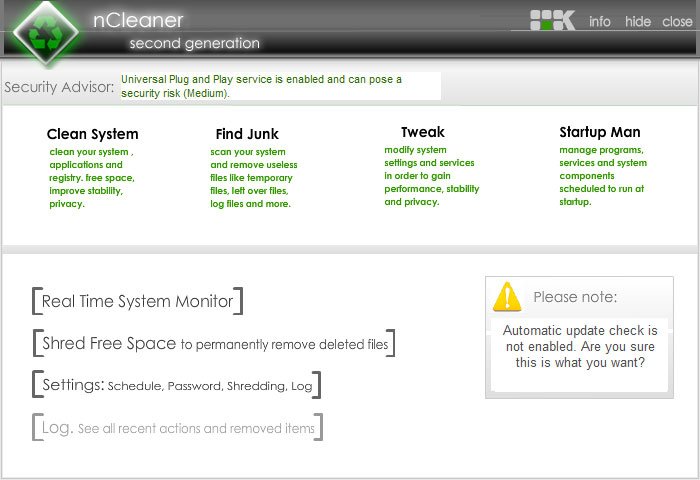
1. nCleaner

Tuesday, December 20, 2011
Best way to lock folder in windows xp and windows 7 without Software
Hi guys if i am not wrong for locking a folder i had given a post few days ago but in that post i never show you how to lock a folder without any software.
So today in this post i am gonna show you how to lock any folder in windows xp and windows 7 without any software.
#In windows xp:
Okay lets say you want to lock a folder from your windows xp computer. Follow the steps below its so simple.
1.Create a New folder from any drive.Saturday, December 10, 2011
Windows XP Boost
Speed And Boost Your WindowsXP Performance
Since defragging the disk won't do much to improve Windows XP performance, here are 23 suggestions that will. Each can enhance the performance and reliability of your customers' PCs. Best of all, most of them will cost you nothing.
1.) To decrease a system's boot time and increase system performance, use the money you save by not buying defragmentation software -- the built-in Windows defragmenter works just fine -
How To Disable USB Ports To Prevent Malware Infection
Many people use USB flash
drives for transfer files, they often plug their Flash drives for many
computers. Therefore, most of the usb drives are contained malwares,
viruses etc. On the other hand, these USB drives are the spreaders of
that kind of malicious applications. If you can disable or lock USB
port temporarily, they can not be able to plug their Flash drives to
your Computer or Laptop. There are several ways for disabling USB ports
such as using Regstry Editor, Disabling autorun and using software.
Today i am going to discuss about how to disable and enable the USB
ports.
First, you need to go to Registry Editor (Start > Run > type " regedit " without having quotes).
* in the Registry Editor, Go to HKEY_LOCAL_MACHINE >SYSTEM>CurrentControlSet >services>USBSTOR
Friday, December 9, 2011
How to disable the right click functionality on the desktop
Today tip is very useful particularly for home
users who want to protect their system default settings against unwanted
changes that other users can make. For example changes in system desktop
appearance, themes, and screen saver as well as other display settings.
Using registry editor, you can disable the right click functionality on
desktop to access the "Display Properties" dialog box and this will also
prevent users to access windows explorer.
Follow the given steps to disable the right click functionality on
desktop:
To
use this feature, you will need to be logged into your computer with
administrative rights.
Click Start button and type regedit in Run
option then press Enter for next.
Disable The Disk Performance Counter(s)
Thursday, December 8, 2011
How to disable or enable Dr. Watson for Windows
To disable Dr. Watson
- Click Start, click Run, type regedit.exe in the Open box, and then click OK.
- Locate and then click the following registry key: HKEY_LOCAL_MACHINE\Software\Microsoft\Windows NT\CurrentVersion\AeDebugNOTE: Steps three and four are optional, However, they are necessary if you want to restore the default use of Dr. Watson.
- Click the AeDebug key, and then click Export Registry File on the Registry menu.
- Type a name and location for the saved registry file, and then click Save.
creating a Login banner in windows
Login banners are used in the windows for displaying messages that
user must agree to before using the system. You may want the users to
abide by certain terms and conditions while using the official PC.
These kings of messages may be displayed during the login of windows
system.
In order to enable the login banner
GO to start--> Run --> type regedit --> Press enter
Go to following registry setting
HKEY_LOCAL_MACHINE\SOFTWARE\Microsoft\Windows NT\CurrentVersion\Winlogon

1) Select “LegalNoticeCaption” from the right side of the screen --> right click--> click on
In order to enable the login banner
GO to start--> Run --> type regedit --> Press enter
Go to following registry setting
HKEY_LOCAL_MACHINE\SOFTWARE\Microsoft\Windows NT\CurrentVersion\Winlogon

1) Select “LegalNoticeCaption” from the right side of the screen --> right click--> click on
Create A Shortcut To Lock Your Computer In Windows XP/7/Vista
Leaving your computer in hurry but you doesn’t want to log off? You can double-click a shortcut on your desktop to quickly lock the keyboard and display without using CTRL+ALT+DEL or a screensaver.
In XP
Step 1: On the Desktop, Right Click and hover over New and Click Shortcut.
Step 2: Give the execution code in the ‘Type of the location of the item‘
Create a Hidden User Account in Windows XP
When logging into Windows XP,
by default the operating system shows you all the available user
accounts on the home screen, from where you login to the desired
account. However, this is certainly not a best practice to expose all
your user accounts.
In this article, i will walk you through step by step instructions to create a hidden user account which doesn’t show up on the home screen. This is particularly useful for accounts which have admin rights. This hack will make use of registry modification in Windows XP and therefore you are advised to first take a backup of your registry and also create a restoration point before moving ahead.
Follow the steps mentioned below to hide one of the already created user accounts. In case if you wish to create a new account, you can go ahead and do that using Control Panel.
In this article, i will walk you through step by step instructions to create a hidden user account which doesn’t show up on the home screen. This is particularly useful for accounts which have admin rights. This hack will make use of registry modification in Windows XP and therefore you are advised to first take a backup of your registry and also create a restoration point before moving ahead.
Follow the steps mentioned below to hide one of the already created user accounts. In case if you wish to create a new account, you can go ahead and do that using Control Panel.
1.) Click on Start –> Run. Type regedit at Run.
How To Change The Default Program Files Location For Installing Software in Windows
Windows Vista ( and also Windows 7) , like its predecessors, uses the System Disk for installing any new applications, That is, if your Windows is installed
on the C Drive, the default folder where all the applications you
install would automatically show up as C:\Program Files , unless of
course you change in manually while installing the application’s
locations.
If you almost always prefer to NOT install on the System Disk, but instead on another partition, say, the D drive, then rather then changing the default location everytime, you can edit the registry as follows:
Open Regedit and navigate to the following key:
If you almost always prefer to NOT install on the System Disk, but instead on another partition, say, the D drive, then rather then changing the default location everytime, you can edit the registry as follows:
Open Regedit and navigate to the following key:
Change / Add Restrictions on XP
1. Open RegEdit
2. Go to HKEY_CURRENT_USER\Software\Microsoft\Windows\CurrentVersion\Policies
3. Go to the Explorer Key
4. Then right click on the right side pane and select "Create
Dword".
Select appropriate value name from the list given below and enter 1 for enabling the value and 0 for disabling it
NoDeletePrinter - Disables Deletion of Printers
NoAddPrinter - Disables Addition of Printers
Select appropriate value name from the list given below and enter 1 for enabling the value and 0 for disabling it
NoDeletePrinter - Disables Deletion of Printers
NoAddPrinter - Disables Addition of Printers
Saturday, November 26, 2011
Windows Xp Pro Power-Toys Tools
You can add Microsoft PowerToys to your computer to enhance Windows.
PowerToys are programs that help make Windows easier or more fun to
use. You can obtain Microsoft PowerToys for Windows XP free of charge
at
www.microsoft.com/windowsxp/pro/downloads/powertoys.asp
You can download all or some of the PowerToy programs. Only a user with a computer administrator account can install PowerToys on a computer.
www.microsoft.com/windowsxp/pro/downloads/powertoys.asp
You can download all or some of the PowerToy programs. Only a user with a computer administrator account can install PowerToys on a computer.
Tweak UI
Tweak UI gives you access to computer settings that are unavailable or difficult to access in Windows, including settings that affect the mouse, Start menu and taskbar. When you install Tweak UI, the PowerToy will appear on the Start menu.Resize images Create virtual desktop Open command prompt here
There are 3 following Trix
Download this image resizer software and double click to launch it.
Click next on welcome screen ==> select I accept on license agreement screen ==> Click next on customer info screen ==> Select complete on setup type ==> click on next on ready to install ==> Now click on finish.
- How to resize images
- How to open command prompt here
- How to create four virtual desktop
To resize images:-
If you have to resize image frequently then this is the best software for you. With this software you can resize any image quickly without opening any heavy memory consuming software like Photoshop. And more its absolutely free, very tiny in size, one click use.Download this image resizer software and double click to launch it.
Click next on welcome screen ==> select I accept on license agreement screen ==> Click next on customer info screen ==> Select complete on setup type ==> click on next on ready to install ==> Now click on finish.
Remove XP VISTA Window7 Server 2003 Server 2008 Password and Syskey
How many times you have to reinstall windows due to forget password of administrator or syskey?
In lab scenario it's very common. Consider a situation where students
form one batch was doing the practical on Server. They have set
administrator password in all system and left the lab after the
practical without telling you the password of Syskey and administrator.
What will you do now? Format all systems No. we are telling you the way to reset the password and Syskey on window again.
For demonstration purpose we are setting Syskey and administrator password on one computer.
To set Syskey password
Windows XP bootable CD Step by Step guide
This guide will help you to create a windows xp bootable cd .
Some times we do copy of windows cd on hard disk. If we write these copied files on cd
it will not boot. Because it will not be a windows xp bootable cd.
To make it windows bootable cd you must have to add boot image file on cd. To make
windows xp bootable cd follow our step by step guides.
The following items are required:
- A copy of the original Windows CD/DVD.
make Windows XP Pro unattended CD step by step guide
If you missed the first part of this article series please read
Step by Step Guide to Create Answer Files (Part 1).
In Part 1 of this article series, I explained that how can we create answer files for windows unattended CD. In this article, I will continue the discussion where I left off in Part 1 by using the answer files to make windows pro unattended CD.
Step by Step Guide to Create Answer Files (Part 1).
In Part 1 of this article series, I explained that how can we create answer files for windows unattended CD. In this article, I will continue the discussion where I left off in Part 1 by using the answer files to make windows pro unattended CD.
Create a folder named xpcd on c:\ drive
|
Copy the entire windows XP pro CD
Subscribe to:
Posts (Atom)